SEO Audit Software FAQs and help center
Answers to common questions about SEO Audit Software: lead generation forms, lead sync, white label reports, SMTP setup and user management. For step-by-step guides to the new app, see the app help center.
- Embed the audit form
- White label report
- SMTP setup
- Mailchimp
- App help center
FAQ categories
Pick a topic to jump to its questions, or search above.
Lead generation forms
Create, style and embed SEO audit forms, collect emails and send reports in any language.
9 questions →Lead sync
Send new leads to Brevo, Constant Contact, Mailchimp or any tool with a webhook.
4 questions →SMTP configuration
Send reports and lead emails from your own address with cPanel or Gmail SMTP.
3 questions →Users and sharing
Share reports as PDF, add users to your account and reset your password.
3 questions →White label
Brand your reports and notification emails, and choose the scan server location.
3 questions →New app help center
Step-by-step guides for the new app: audits, clients, keyword tracking, Google data, leads, team and billing.
70 guides →Popular help articles
The questions people ask most, each as a full article.
- How to add the Text Button for the Popup Lead Generation Form?
- How can I change scan domain server location browser?
- How to configure white label notification email
- How To Connect Mailchimp With SEO Lead Generation Tool?
- How to Create a Lead Generation Form and redirect to a specific URL without showing a report?
- How to create report in any language by the SEO Audit Widget?
- How to Find SMTP Data from cPanel
- How to integrate lead generation form (SEO Widget) into your website?
- How to make white-label SEO Report
- How to share Audit Reports via email without showing the Report?
- How can I share the Audit Report as a PDF with clients or 3rd party users?
All FAQs
No questions match your search. Try another word, or browse the app help center.
SEO Lead Gen 9
How to add the Icon or Image Button for the Popup Lead Generation Form?
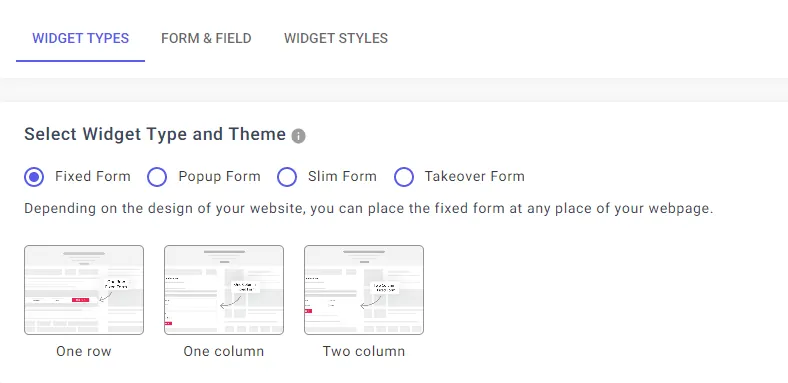
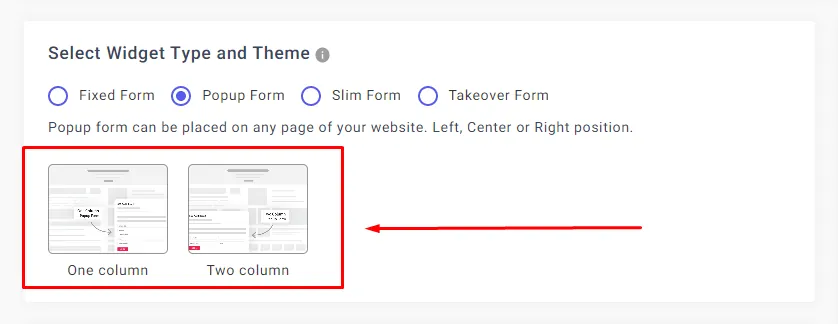
Now select the Popup Form from the Widget Types tab, where you will see a few types of Form Samples. Next, select the Two-Column Popup Form.
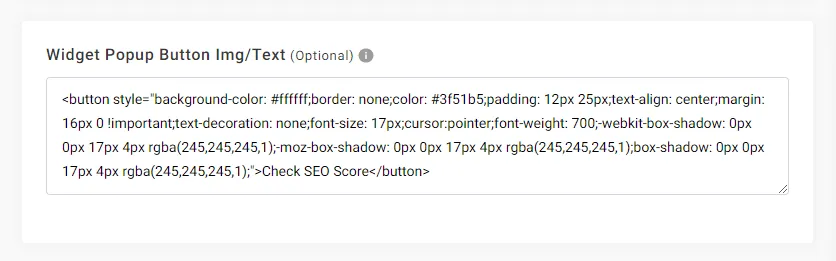
After selecting the Two Column Popup Form, you can see a Widget Popup Button Img/Text field. By default, we set an Icon for our users. You can use this button Icon or can change it in your way.
Now click on the Save Widget & Get Code button. You will redirect to the ‘Widget List’ section. Simply copy and paste that code on your website HTML element before the end of the body tag.
If you want to update Widget Popup Button Icon, go to the ’Widget List’ section and click on the edit button. You will be redirected to the ‘Create widget’ section, where you can make the necessary adjustments.
Once you click on the ‘Update’ button, your created widget will be automatically updated. You don’t have to create or change the code anymore. If you click the ‘Reset Widget’ button, all your changes will be undone, and you will find your widget in the default outlook.
How to add the Text Button for the Popup Lead Generation Form?
By default, this option is available for Popup One Column Form. First, login into our app.seoaudit.software then click on the Create Widget
from the left menu. You will see the following image,
Now select the Popup Form from the Widget Types tab, where you will see a few types of Form Samples. Next, select the One Column Popup Form.
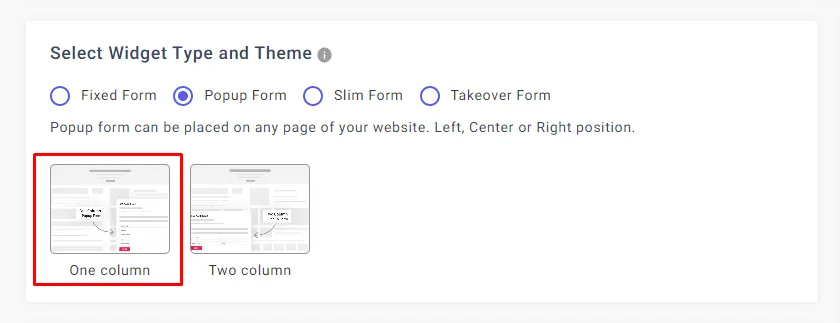
After selecting the One Column Popup Form, you can see a Widget Popup Button Img/Text field. By default, we set a button for our users. You can use this button text or change it your way.
Now click on the Save Widget & Get Code button. You will redirect to the ‘Widget List’ section. Copy and paste that code on your website HTML element before the end of the body tag.
If you want to update the Widget Popup Button Text, go to the ’Widget List’ section and click on the edit button. You will be redirected to the ‘Create widget’ section, where you can make the necessary adjustments.
Once you click on the ‘Update’ button, your created widget will be automatically updated. You don’t have to create or change the code anymore. If you click the ‘Reset Widget’ button, all your changes will be undone, and you will find your widget in the default outlook.
How to collect email before sharing the audit report?
Using SEO Audit Software you can share audit reports in many ways. Here we are going to explain how to share the audit report after collecting the email address.
As SEO Audit Software provides white label solutions so we can’t ask for an email verification link or pin code, because we want your user to know you are not using any 3rd party tools for generating the audit report. That’s why first you need to verify your SMTP (Simple Mail Transfer Protocol) so you can send an email directly from our app to your user using your business email.
Let’s discuss now how to collect email addresses before sharing the audit report.
Click Create Widget under Generate Leads Menu
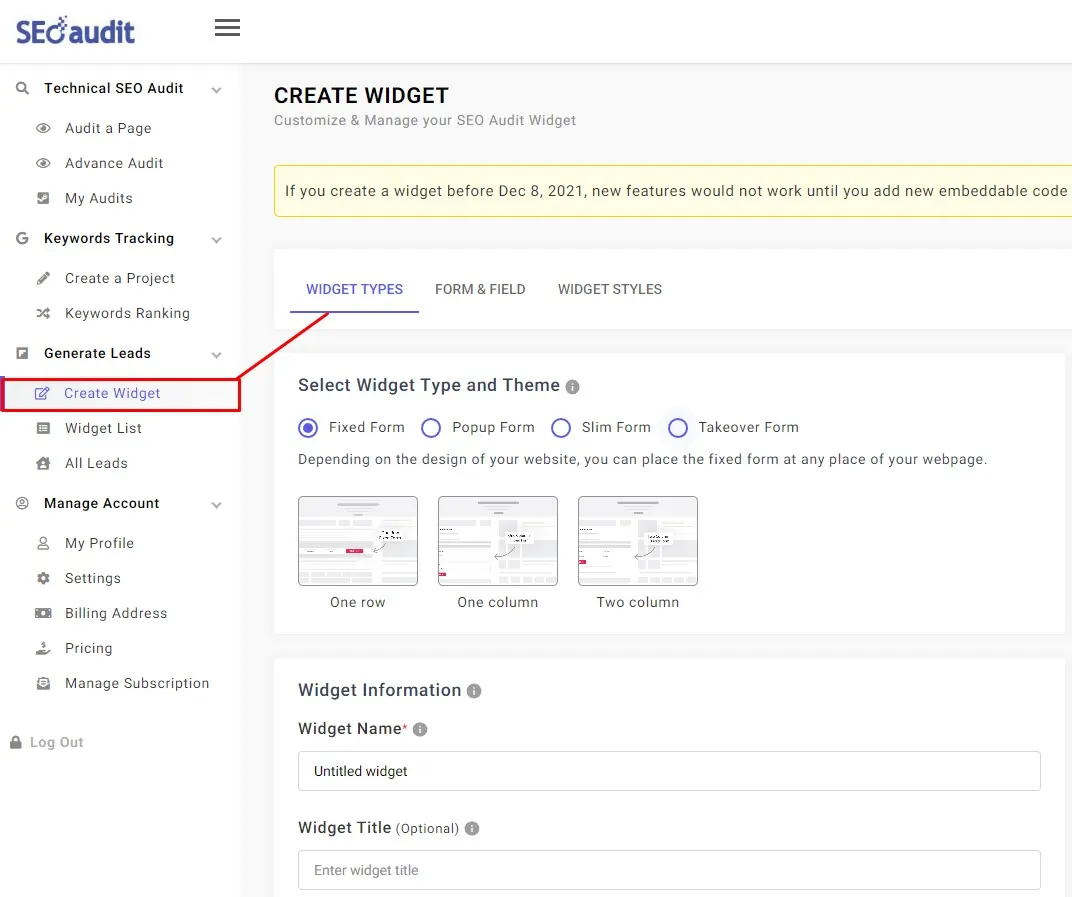
There you can find widget types and themes and some other basic information.
Most important for collecting email addresses before sharing the audit report is
Report Form Submit Action
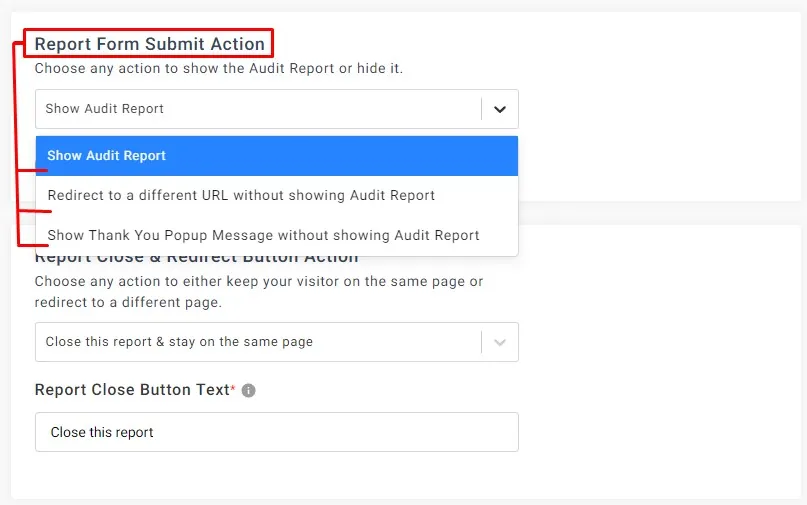
Here you can find three features.
Show Audit report
If the user submits a wrong or fake email address, our widget will show a report. So you’re unsure whether this email address is correct or not.
Now if you want to send an audit report to the user’s email address, you must first configure SMTP and select “Send Audit Reports to the user’s email address via your SMTP”
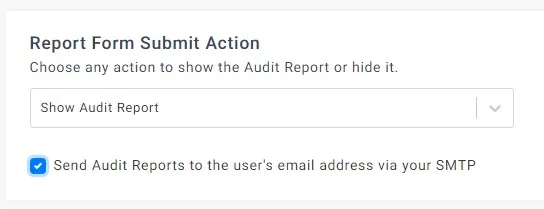
So how to collect email addresses before sharing the audit report?
Select Redirect to a different URL without showing the Audit Report
Do check “Send Audit Reports to the user’s email address via your SMTP”
After submitting the form, the user will redirect to thank you page or some landing page (You need to create it on your website) and paste this URL into the “Redirect to Specific URL” input box.

This way users would not view reports on your website they will receive reports in their email address and redirect to your specific URL.
Select: Show Thank You Popup Message without showing Audit Report
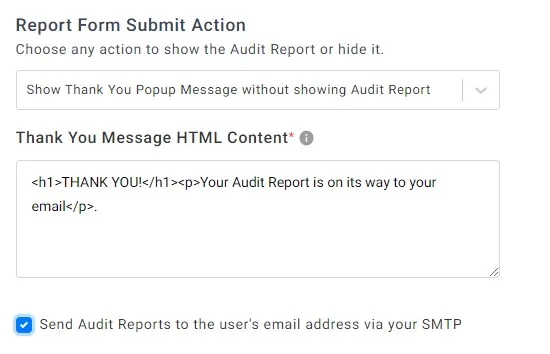
You don’t have to create a thank you page. Here users would not redirect to different URLs. They will stay on the same page and see a thank you message on the popup. And users will only receive reports via email.
How to create a Lead Generation Form & send reports directly via email by showing Thank You popup message?
This option is available for all SEO widgets. If you want to set up a widget form where visitors will run an On-page SEO Audit, & you can send the Audit Report via email without showing the report instantly. Check the below details,
STEP 1: First, login into our app.seoaudit.software then click on the Create Widget from the left menu. Once you click on the Create Widget, you can see the following picture,
Now select the SEO Lead Generation Form from the Widget Types tab. You can see there are a few types of Form Samples. Select the desired one.
STEP 2:
You can see one section with this title, Report Form Submit Action.
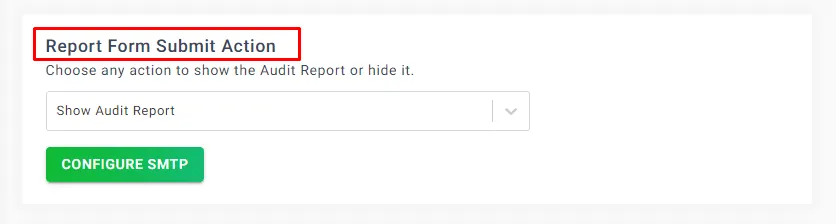
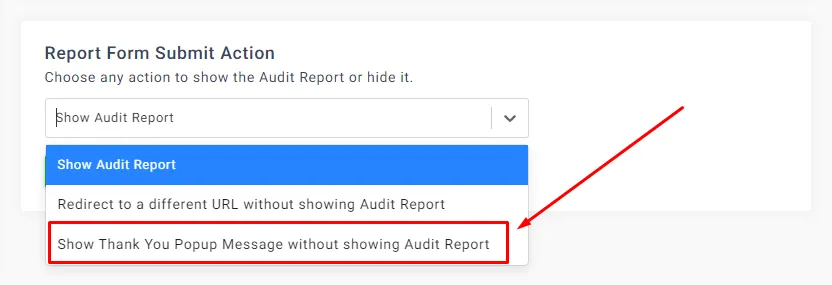
Now select Show Thank You Popup Message without showing Audit Report.
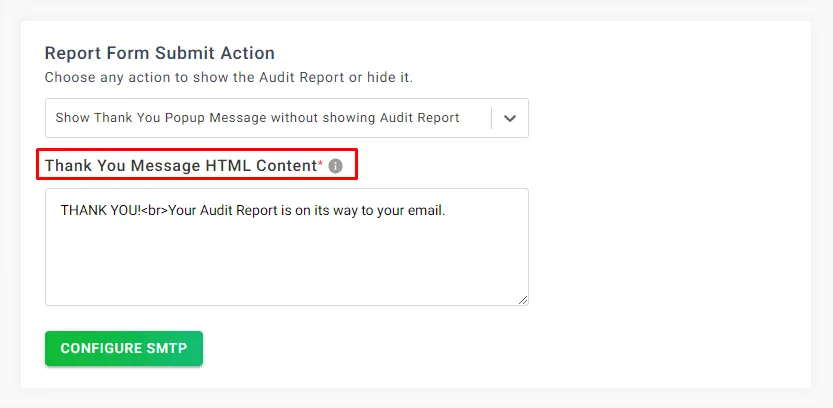
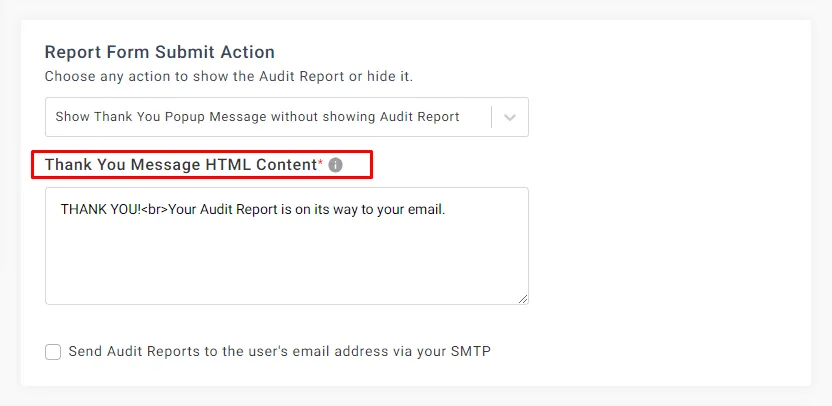
You can see an option to write Thank You Message with HTML content.
STEP 3:
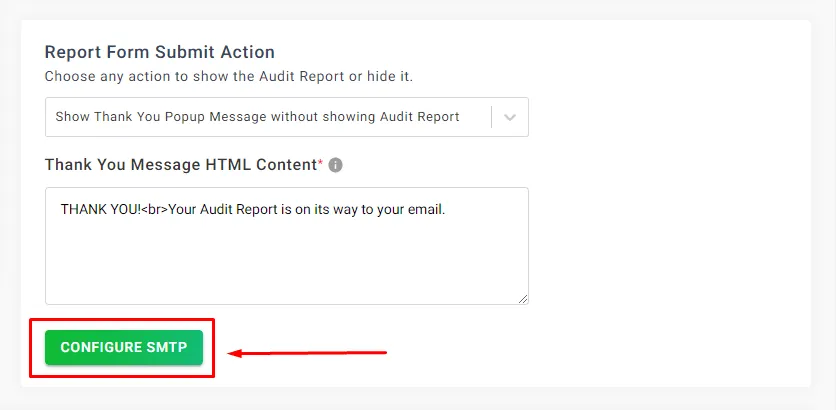
If you have not configured the SMTP Server for sending the audit reports directly from your email address to the user’s email address. Then you must verify your SMTP. You can check our FAQ for SMTP Configuration.
STEP 4:
Once you have configured the SMTP server for sending the email from your email address, you will see a checkbox under the Thank You Message HTML Content box.
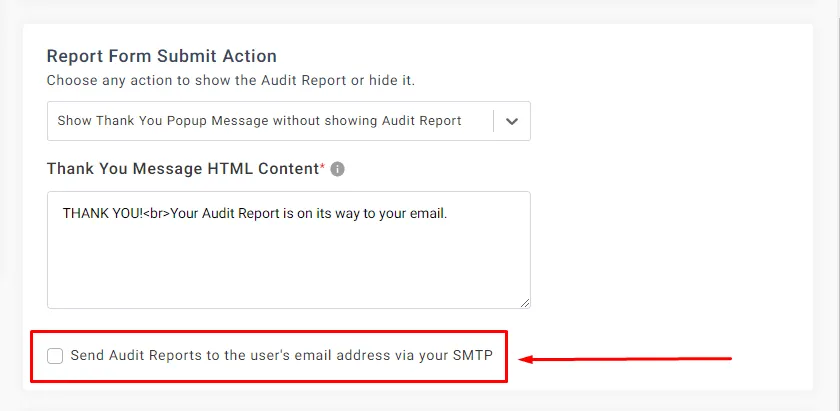
Now, insert a tick mark for sending the Audit Report via SMTP to your end-users.
Note: You can edit (white label) your email from Settings > Email Notification Tab.
How to Create a Lead Generation Form and redirect to a specific URL without showing a report?
This option is available for all SEO widgets. If you want to set up a widget form where visitors will run an On-page SEO Audit, & you can send the Audit Report via email without showing the report instantly. Follow the below guidelines,
STEP 1: First, login into our app.seoaudit.software then click on the Create Widget from the left menu. Once you click on Create Widget, you can see the following picture,
Now select the SEO Lead Generation Form from the Widget Types tab. You can see there are a few types of Form Samples. Select the desired one.
STEP 2: Here you can see one section with this title, Report Form Submit Action.
Now select, Redirect to a different URL without showing Audit Report.
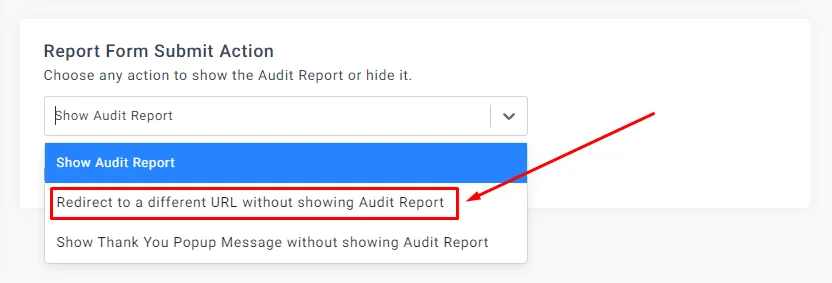
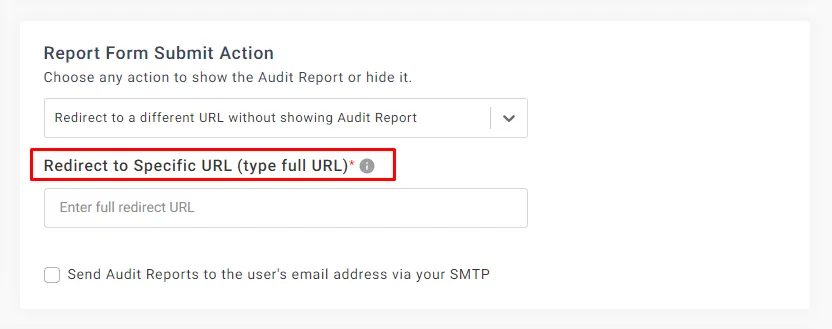
Once you select this option from the drop-down menu, you can see an option will show up for setting a redirect URL.
Type the full redirect URL here, e.g., https://www.google.com/
How to create an SEO audit report in multiple languages using Lead Gen Tool?
By default, the SEO Audit Widget is set to the English language during its creation. However, if you have a multilingual website, what would happen?
Understanding the concept:
If you work in the digital marketing industry and offer SEO services, it's highly likely that you have both local and international clients. To effectively reach your target audience and drive traffic to your website, it's important to communicate with them in their language.
Why do we need SEO Audit Report in a different language?
For example:
SEO audit dot software
And you want to show the audit report in the English language.
And for SEO audit dot software/fr
you want to show the report in the French language
Or for SEO audit dot software/de
you want to show the report in the German language
As you can create unlimited SEO widgets, you need to create three different SEO Lead Generation widgets to serve English, German & French language audiences/visitors on your website.
How to create multiple SEO Audit Widgets in Different Languages?
Click Create Widget from Generate Leads Section
Check the screenshot image below:
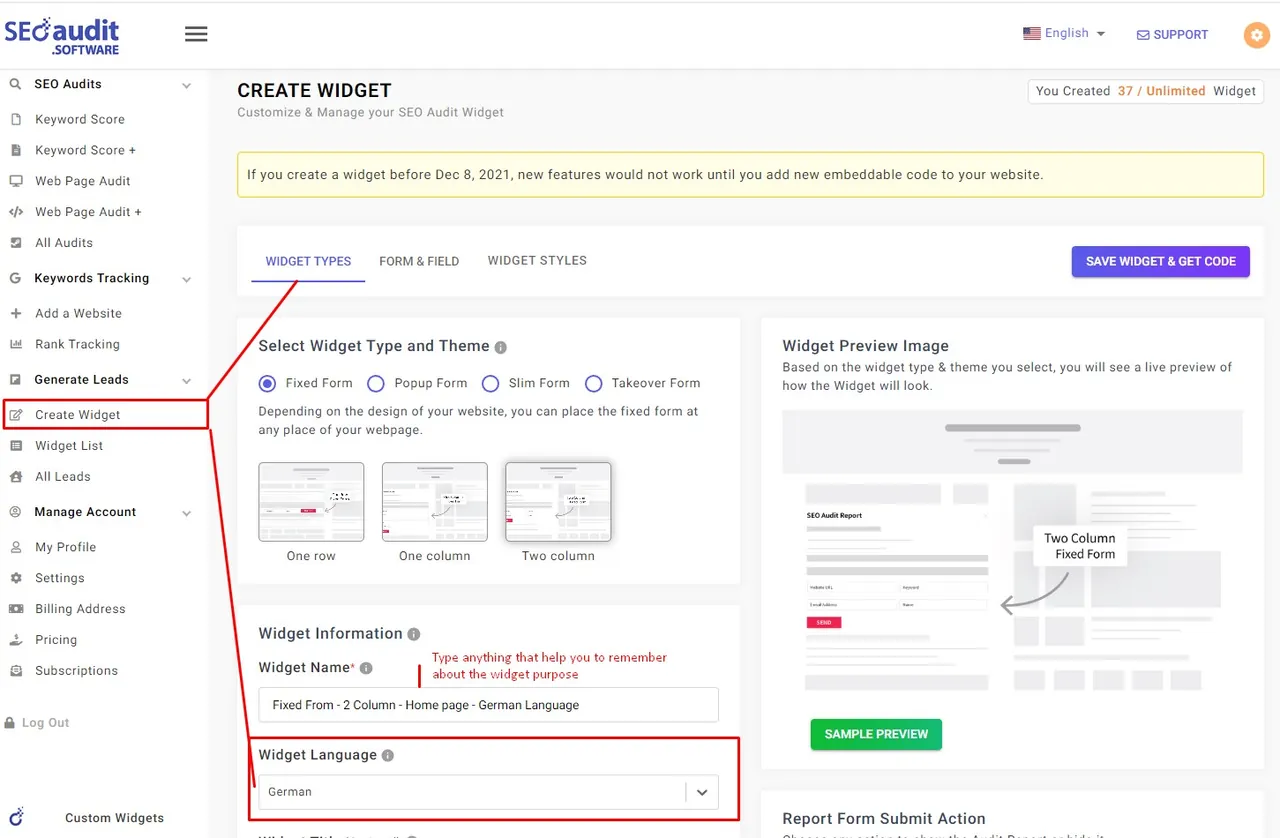
Select the language, Using this lead gen widget code, you can display your SEO audit report for any language available in the SEO Audit Software platform.
How to create report in any language by the SEO Audit Widget?
Using SEO Audit Widget you can generate report in any available language & Setup your default language for the report.
Steps to setup default language for the report by the widget:
- 1. Login to your SEO Audit Software Dashboard
- 2. Click My Profile from the Manage Account Section
- 3. Select your language, by default it’s English
- 4. Click SAVE Button
Now if anyone run an audit using SEO Lead Generation Widget, they can see the report in selected languages.
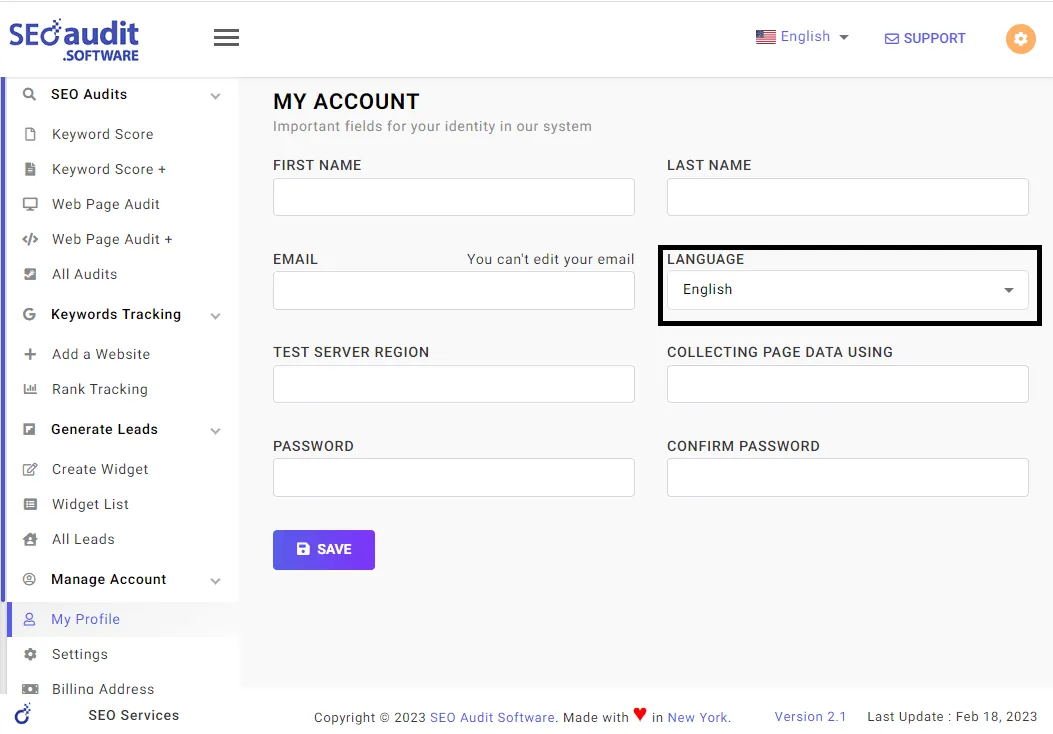
Note: We generate lot’s of data during the running audit from the widget and some data comes directly from Google lighthouse that are not translable.
How to integrate lead generation form (SEO Widget) into your website?
Before integrating the SEO Lead Generation tool, log in to SEO Audit Software Dashboard and create a widget.
STEP 1: If you create the widget first time click “Save Widget & Get Code” Button. If you are editing existing widget click “Update & Close” Button. Then you can find Widget List.
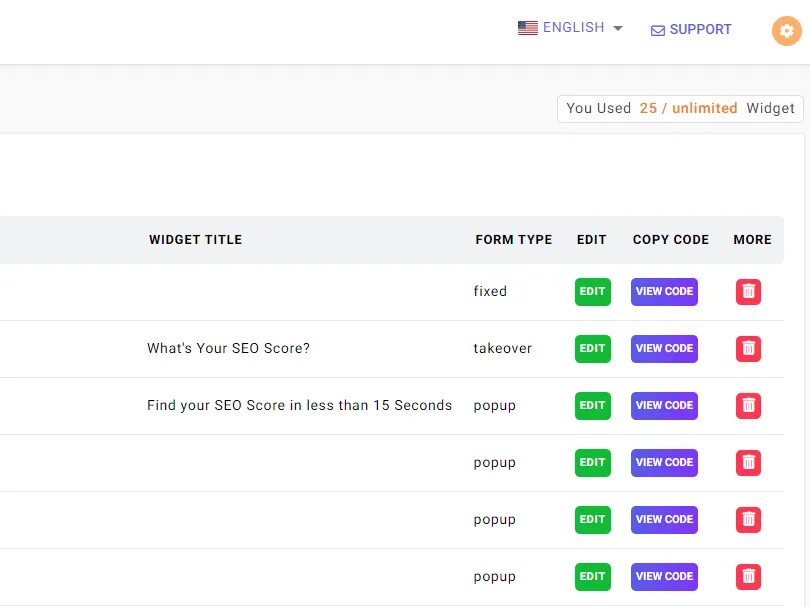
STEP 2:
From the widget list section click “VIEW CODE” Button. Then you can see the code as below in the Step 1 & Step 2 Section. And you can simply click the copy button to paste into your website.
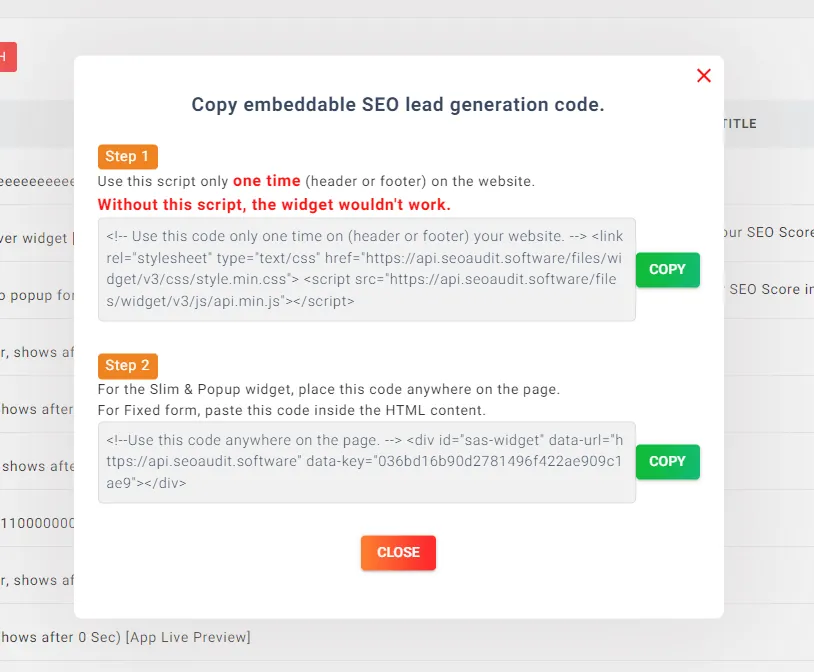
STEP 3:
- Add Step 1 code only one time before closing the head tag.
- If the Form Type is Fixed, apply step 2 to display the widget form anywhere on the website.
- If the Form Type is POPUP or TAKEOVER, apply step 2 anywhere on the website
STEP 4 (Optional):
- After adding the widget code to your website, if you change anything from SEO Software Dashboard widget settings, you will see the change in your website by pressing CTRL+F5
- If you want to add multiple widget form into your website or in the same page just add Step 2 code.
- Remember: Step 1 code require only one time.
How to share Audit Reports via email without showing the Report?
It’s very simple, before sending any email from your email address to the user’s email address, configure SMTP Server. If you still haven’t configured it, go there – Settings > SMTP SETTING. If you don’t know how to configure SMTP, check this FAQ – SMTP Configuration.
Once you have configured the SMTP, you can send Audit Reports via your email address.
Now go to the Create Widget from the left menu of our app.seoaudit.software.
You can see a section name, Report Form Submit Action, under the widget types tab. Now select any one of them, Redirect to a different URL without showing Audit Report or, Show Thank You Popup Message without showing Audit Report.
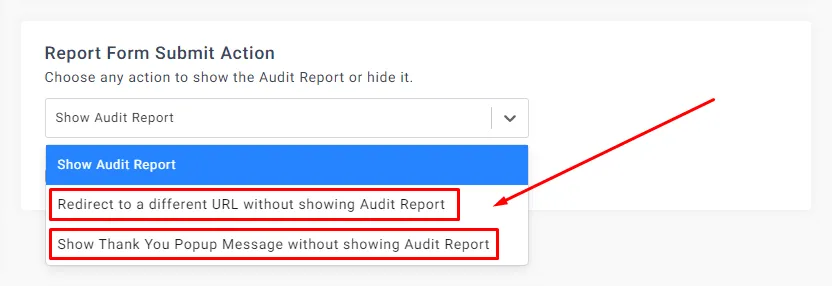
Once you select an option from the drop-down menu, you can see an option that will show up for setting a redirect URL.
Just type the full redirect URL here, e.g., https://www.google.com/
Or, if you select Show Thank You Popup Message without showing Audit Report, then type a Thank You Message with HTML Content.
SEO Lead Sync 4
How To Connect Brevo formerly Sendinblue With SEO Lead Generation Tool?
To obtain an API key for Sendinblue, you'll need to follow these steps:
- → Go to the Brevo website https://www.brevo.com/ and create an account if you haven't already done so.
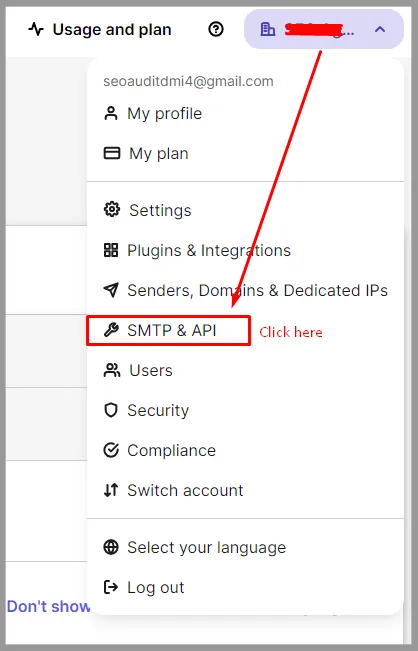
- → Once you've created an account and logged in, click on your profile at the top right corner and select "SMTP & API" from the drop-down menu.
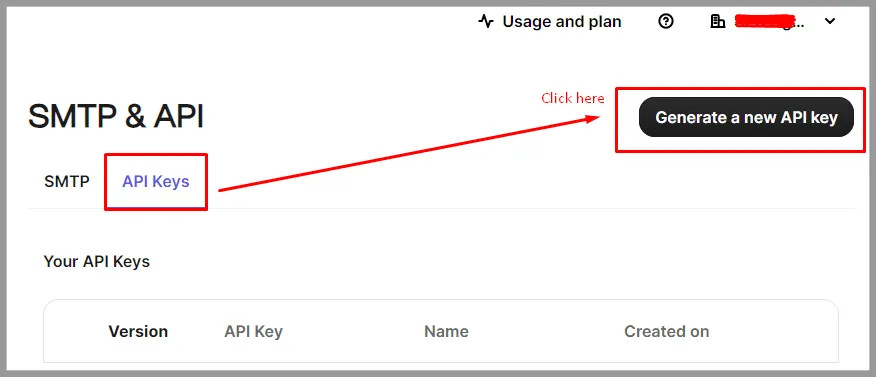
- → On the SMTP & API page, you'll see a section labeled "API keys" Click on that. And click on the "Generate a new API key" button.
- → Give your API key a name, click on “Generate” button. You'll see your API key displayed on the screen.
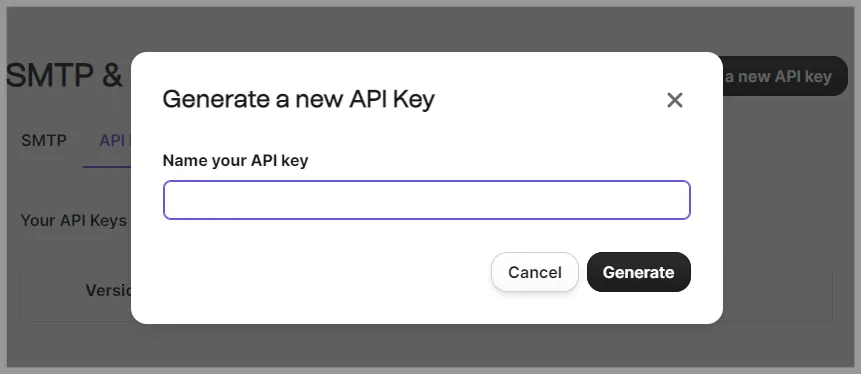
- → Give your API key a name, click on “Generate” button. You'll see your API key displayed on the screen. Copy the key & save it. Make sure to copy it and store it in a safe place, as you won't be able to view it again once you leave the page.
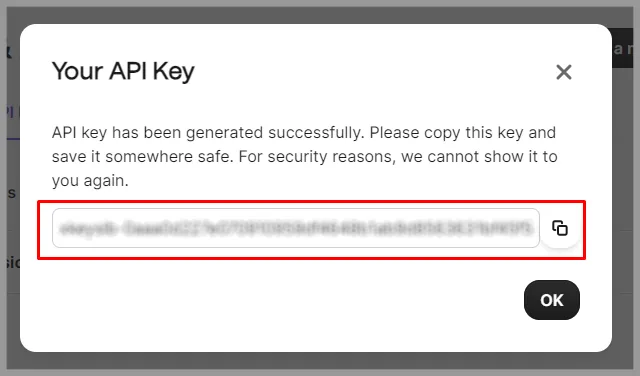
- → With your API key in hand, you'll be able to start integrating Brevo into our SEO Audit Software.
- → Go to our SEO Audit Software dashboard, click Settings from the left menu. Click “SYNC LEAD” tab. Click on Brevo & Paste the API key. Click on Login Button. You are all set.
Make sure to copy and securely store your API key, as you will need it to connect your Brevo account with third-party services or applications.
How To Connect Constant Contact With SEO Lead Generation Tool?
Below are the general steps to connect Constant Contact with our SEO lead generation tool:
- → Go to the Constant Contact website https://www.constantcontact.com/ and, if you haven't already, create an account.
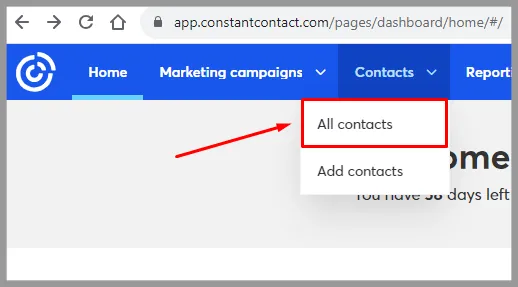
- → After successfully creating an account and logging in, navigate to the "Contacts" option in the header menu, then select "All Contacts" from the dropdown menu.
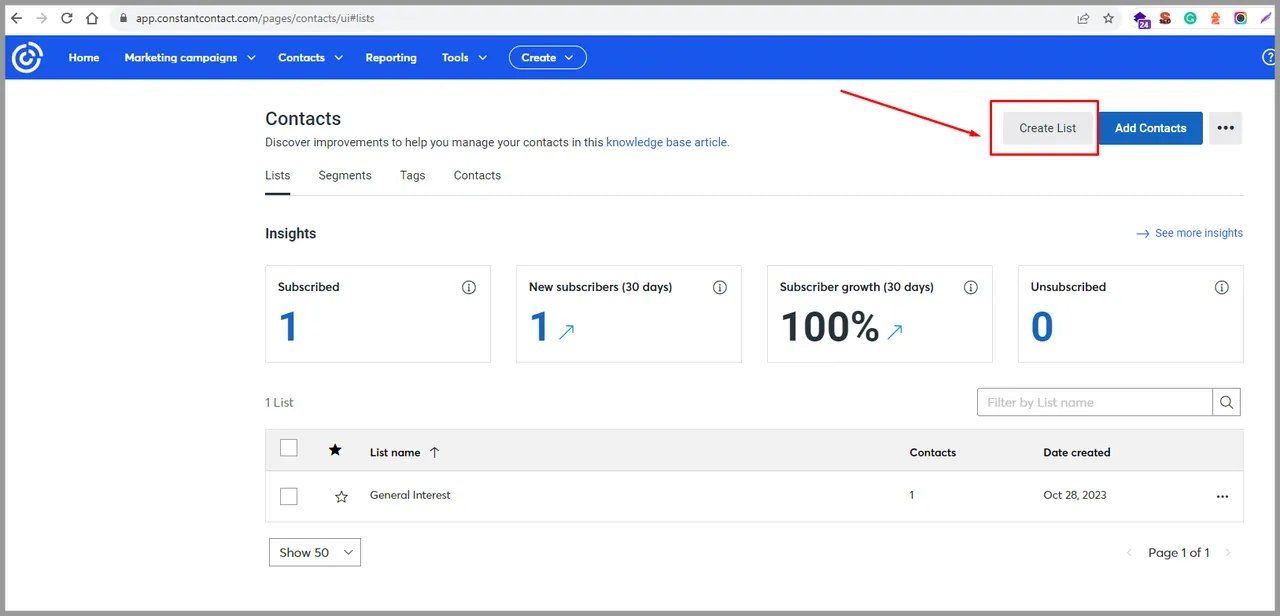
- → To manage your email list, you'll find a button labeled "Create List". If you want to store your emails in a new list, you can create one here. Alternatively, if you already have an existing list, you can use it for this purpose.
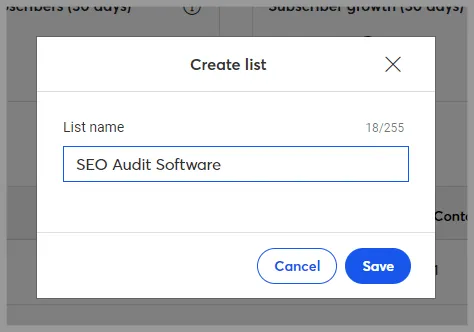
- → Assign a name to your list and save it.
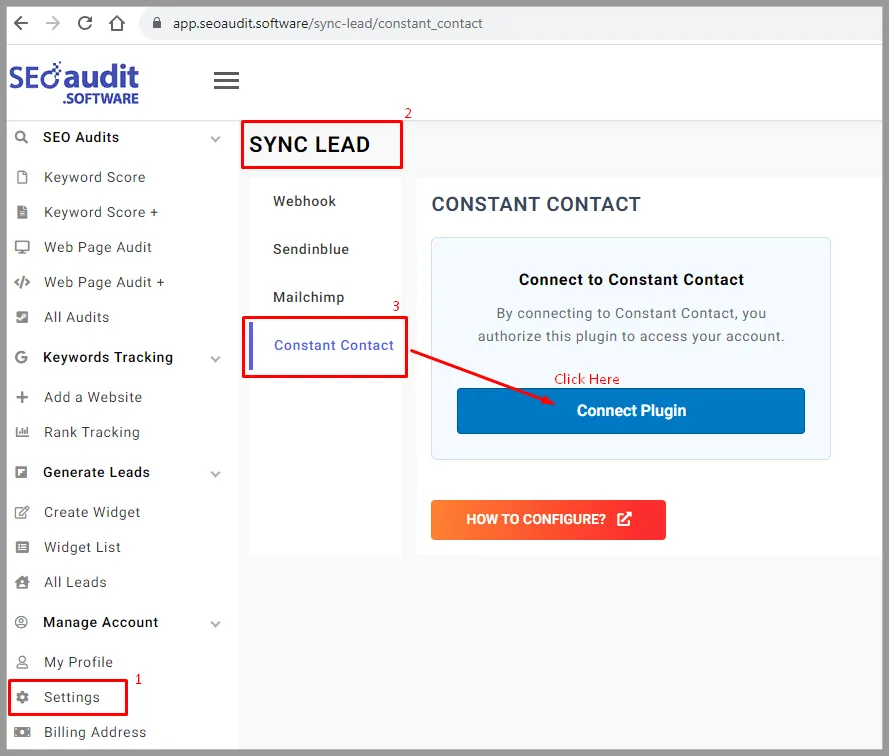
- → Now, access our Software at app.seoaudit.software. In the left-hand menu, click on "Settings" and then select the "SYNC LEAD" tab. Under the Constant Contact section, click the "Connect Plugin" button.
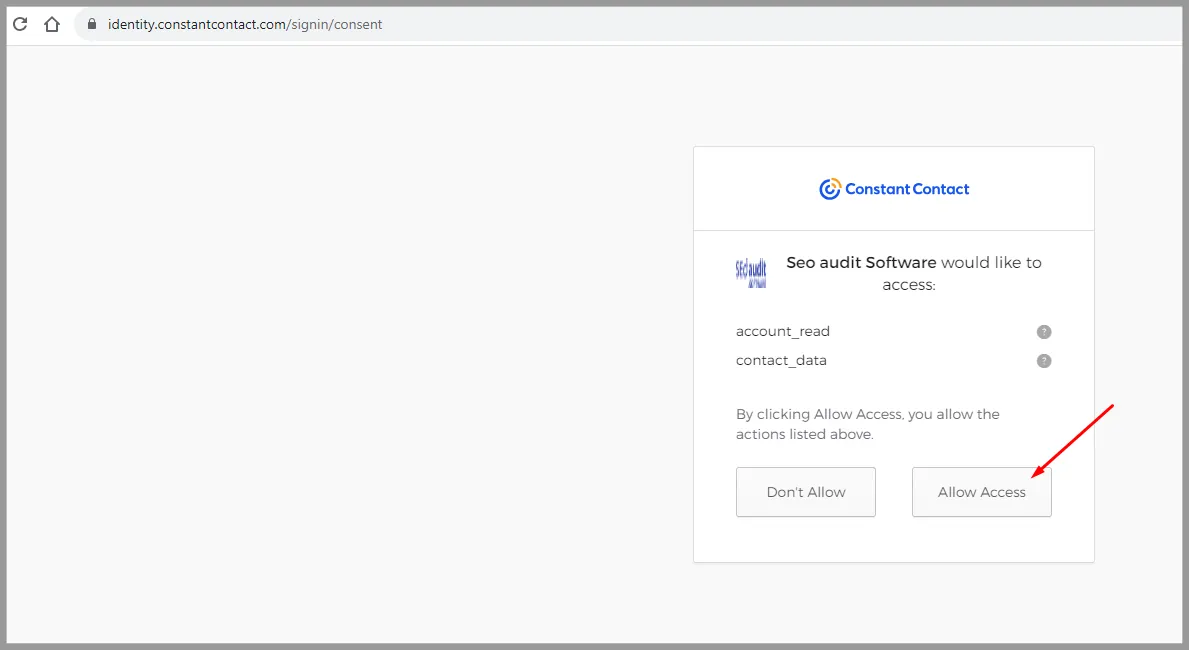
- → Grant our software access by clicking the "Allow Access" button.
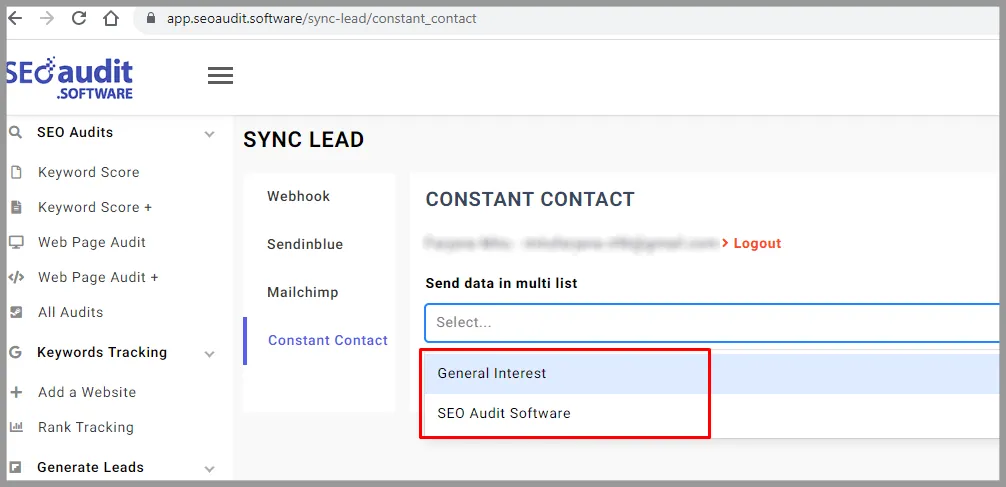
- → The connection is now established. You will see a dropdown menu listing the names of your created lists in Constant Contact. Choose the desired list where you want to receive the leads, then click the "Save" button. You're all set and ready to go.
How To Connect Mailchimp With SEO Lead Generation Tool?
To get your Mailchimp API key, you need to follow these steps:
- → Login to your Mailchimp account.
- → Click on your profile name in the top-right corner and select "Account" from the dropdown menu.
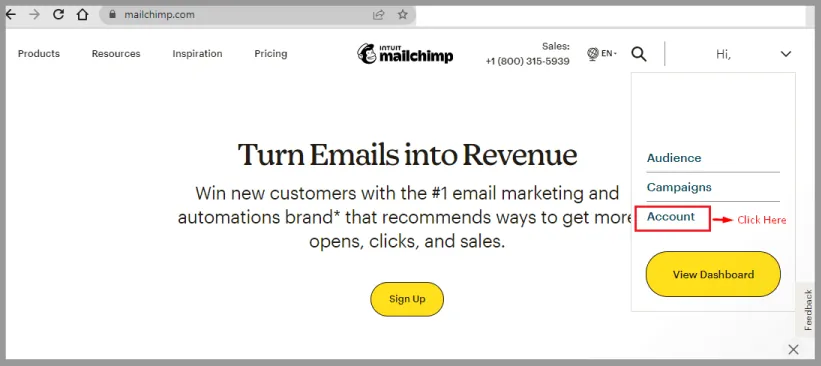
- → In the Account Dashboard, click on the "Extras" dropdown and select "API keys".
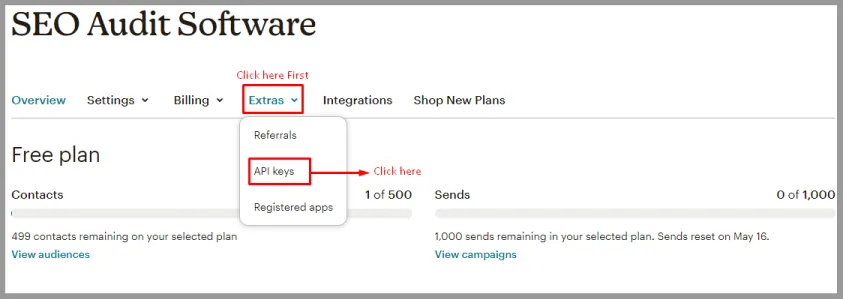
- → On the API Keys page, click on the "Create A Key" button.
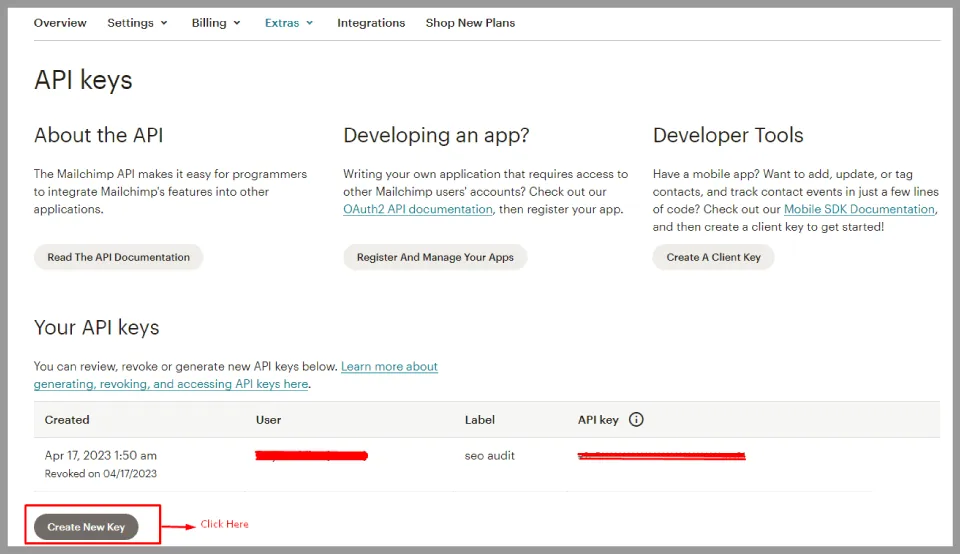
- → Give a name to your API key and click on "Create".
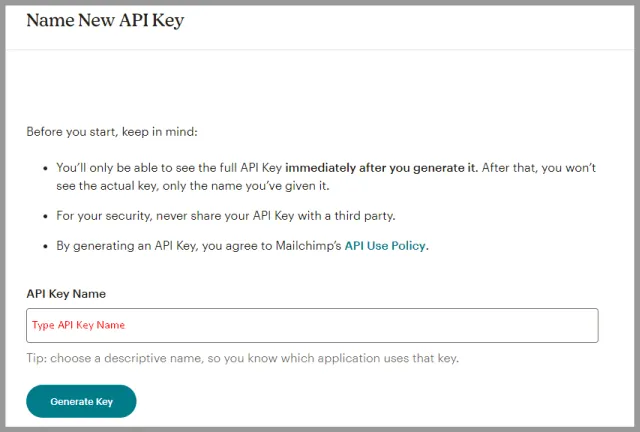
- → Your new API key will be displayed on the screen.
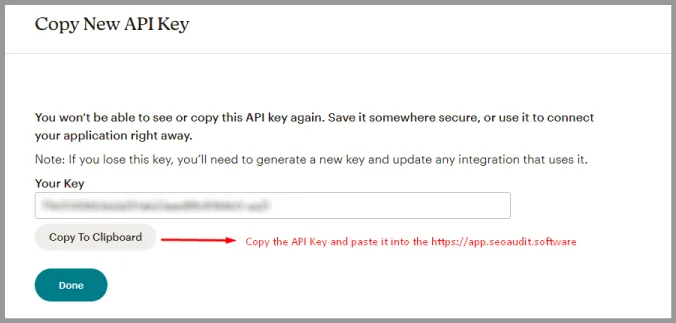
- → Go to our Software dashboard, click Settings from the left menu. Click “SYNC LEAD” tab. Select Mailchimp as the email marketing platform you want to connect.
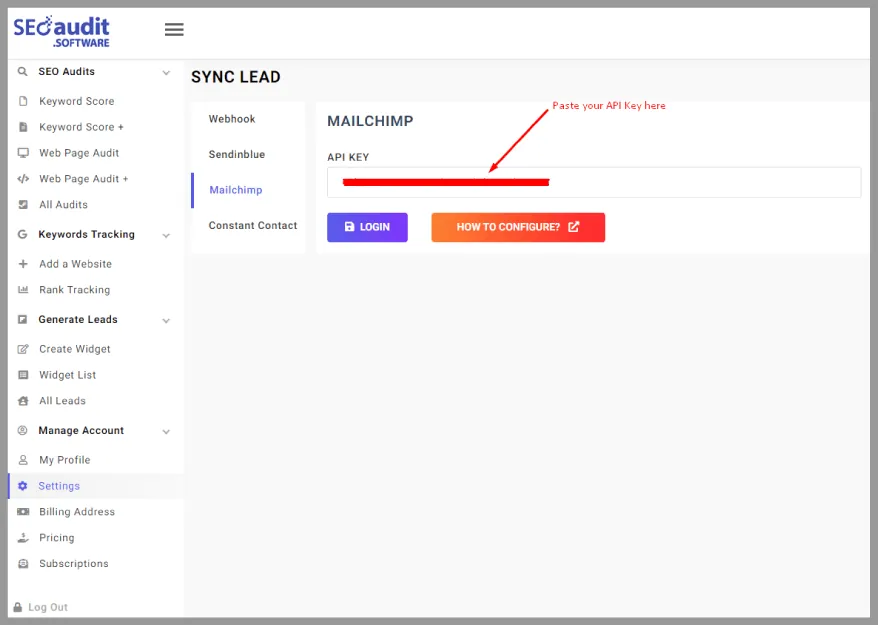
Make sure to copy and securely store your API key, as you will need it to connect your Mailchimp account with third-party services or applications.
How to Setup Up Webhooks for SEO Lead Sync?
If you're using our SEO Audit Software and want to Setting Up Webhooks for SEO Lead Sync, follow these easy steps:
- → Step 1: Add Webhook Code to WordPress
For WordPress users, the preferred method is adding our code to the
function.phpfile. You can find the code here.- → We transmit JSON data via a POST request. You'll receive the following fields:
tokenemailFIRSTNAMELEAD_PHONELEAD_URLLEAD_KEYWORDLEAD_REFERENCE_URLLEAD_ACCEPT_TNC
- → Step 3: Set Up Brevo Marketing Automation
Create a contact list in Brevo and obtain your API key. If you're unsure how to do this, check out our FAQ: How To Connect Brevo with SEO Lead Generation Tool.
- → Step 4: Update Contact List ID and API Key
Insert your Brevo contact list ID and API key into the code in your function.php file.
- → Step 5: Get Your Token
Copy the token from our software under the "Sync Lead" tab in the Settings menu on our App.
- → Step 6: Configure the Webhook URL
Use the sample URL format:
https://seoauditinc.com/test/?webhook_action=o2tsn3os059eb9bdxqkcu3sa3bh632z6fwzm13m4- → Step 7: Set the Webhook URL in Our Software
Go to our Software dashboard, click Settings from the left menu. Click “SYNC LEAD” tab. Select Webhook & paste the configured URL into the "URL TO POST TO" field under the "Sync Lead Webhook" section on our website.
- → Step 8: Create a Widget and Copy the Code
Generate a widget from our software and copy the SEO lead generation code provided.
- → Step 9: Run an Audit Report
Finally, run an audit report on your website. Check the data in your selected Brevo contact list.
That's it! You're all set to seamlessly sync leads from SEO Audit Software to your Marketing Automation Tool. If you have any questions, feel free to reach out to our support team. Happy syncing!
.field { margin-left: 40px; }
SMTP Configuration 3
How to Find SMTP Data from cPanel
To set up either your Gmail or Business Email for a custom report sending or lead notification email, it’s necessary to configure an SMTP server. Luckily, the configuration of SMTP servers is generally very easy with SEO Audit Software.
All you have to do is simply sign up for a 14-day free trial or subscribe to any package to enter the SMTP setting at app.seoaudit.software. Free users can’t configure the SMTP.
First, go to Manage Account > Settings > SMTP Setting. Here you will find out all the necessary settings to configure SMTP for your Gmail, Yahoo, or Business Email.
How to set SMTP using Gmail?
To set the SMTP server for your Gmail account, follow the below steps. Before starting make sure your Gmail account has 2-step verification and App Password enabled. Because we need it for SMTP configuration.
- SMTP HOST: smtp.gmail.com
- SMTP PORT: If you’re using SSL, then it would be 465. And if you’re using TLS, then enter 587
- SECURITY: SMTP security is required for securing your email-sending connection. You can send email to anyone inside or outside your business if you connect using SSL or TLS. Choose TLS or SSL, that you’re currently in.
- SMTP USER NAME: Enter your Gmail Address.
- SMTP PASSWORD: Here you’ve to enter your App password which is configured in the Google account. To find out your App Password follow the below steps:
-
Go to Google Account > Security
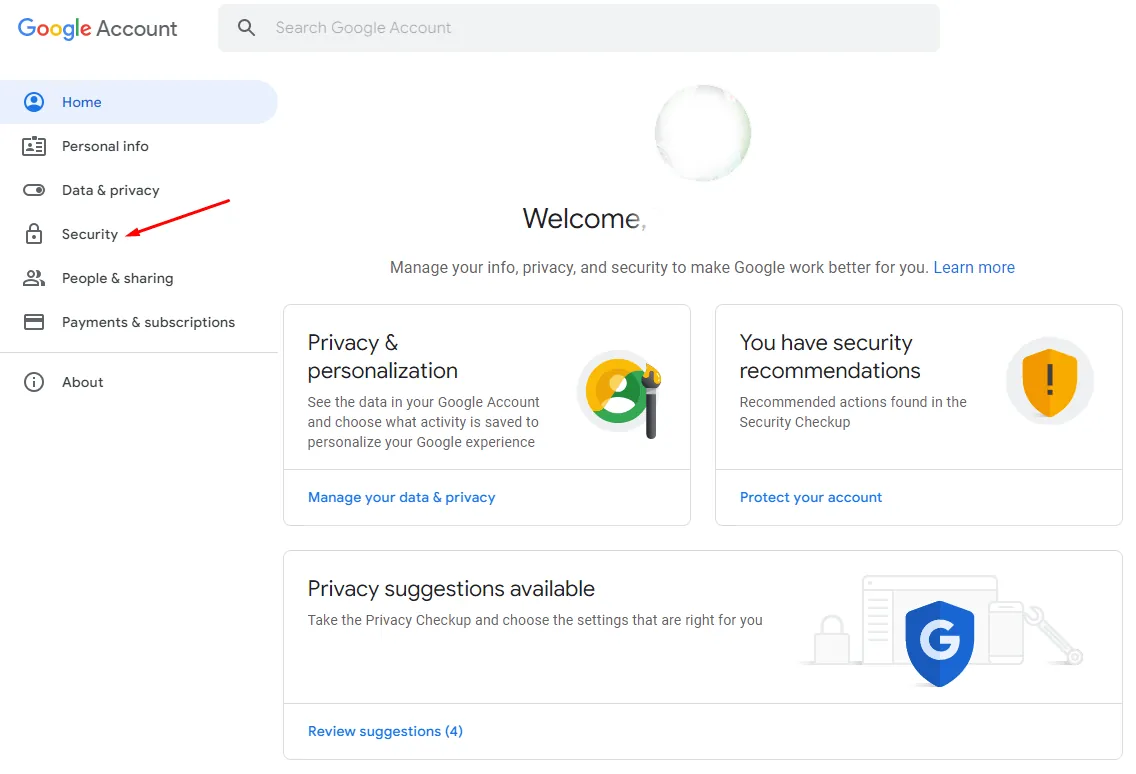
-
Select App Passwords below the ‘Signing in to Google’ section. If you don’t find yours that is because your account does not have 2-Step Verification enabled. So first set up 2-Step Verification.
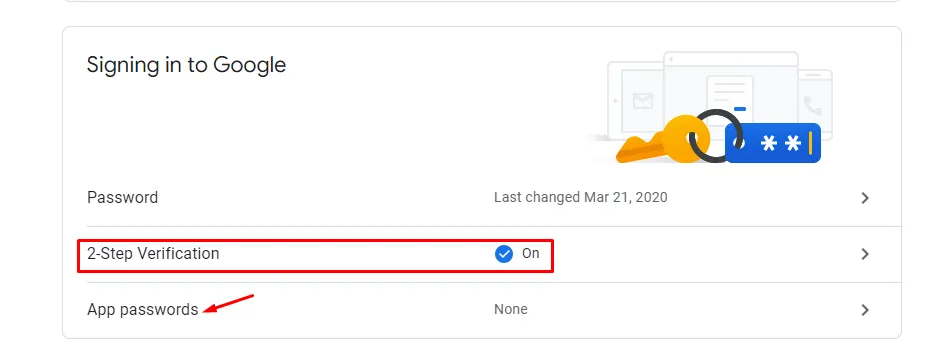
-
After selecting App Passwords here you may need to enter your Google Account Password again. Then select the app and device. And then click on ‘Generate’. You will have your App password.
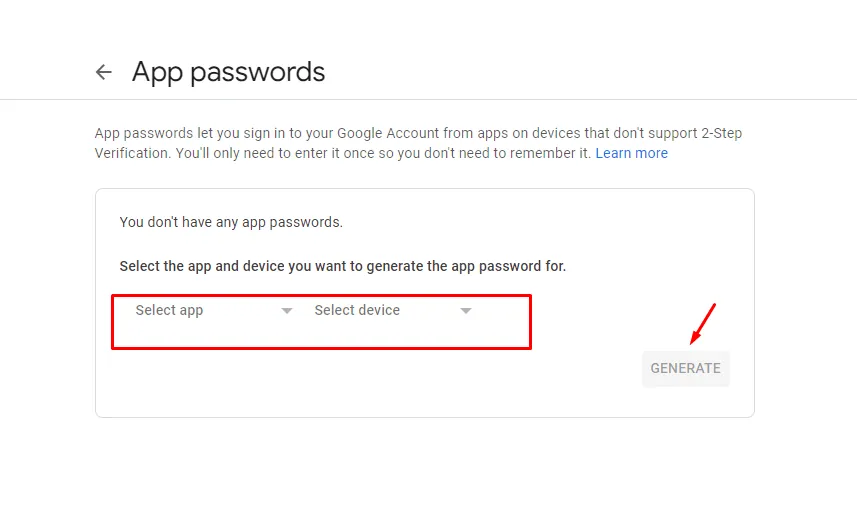
- From the ‘Select App’ dropdown menu, choose the app you’re using or you can add a custom app name.
-
And for the select device, select the one you’re using or just enter a custom device name.
Note: In the case of the Custom name for App and Device, just one app or device selection is needed. The selection of App or Device has no influence on the app password. They are just used for your personal reference and for Google to apply the proper instruction for the next step. - And then click on the ‘Generate’ button. You will have your App password.
-
Go to Google Account > Security
Now copy the 16-digit app password and paste it onto the ‘SMTP PASSWORD’.
- SENDER NAME: Write whichever name you like. It will appear on the email notification.
- SENDER EMAIL: Enter your Gmail Address. Please keep in mind that if you enter a different Sender email from the Username, your emails can be marked as spam.
Now click on the ‘Save & Verify SMTP’ button. Your SMTP configuration is successfully completed. Please check your Gmail account for any verification mail to complete the SMTP configuration.
How to set SMTP from cPanel?
Now for the Business Email, you need to first set up SMTP in cPanel, Ajenti, Froxlor, CentOS, or Plesk – anything of your choice.
Here we’ve shared how you can set up SMTP in cPanel.
-
First, you have to create an email account on the cPanel
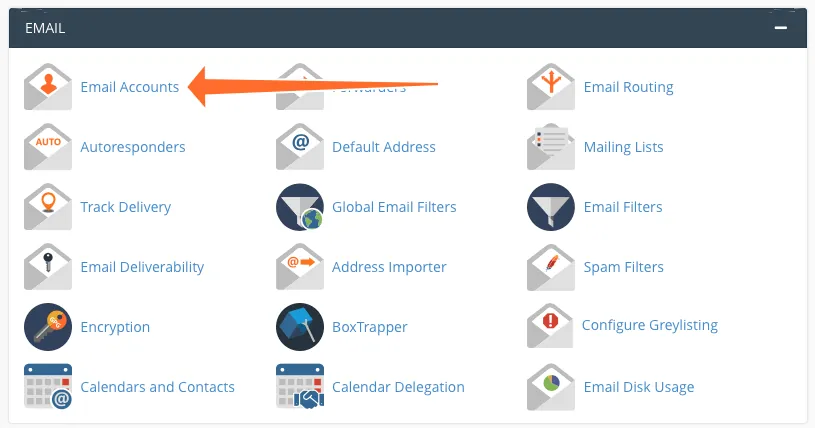
-
Then select domain, username, and password and click create to generate a new account
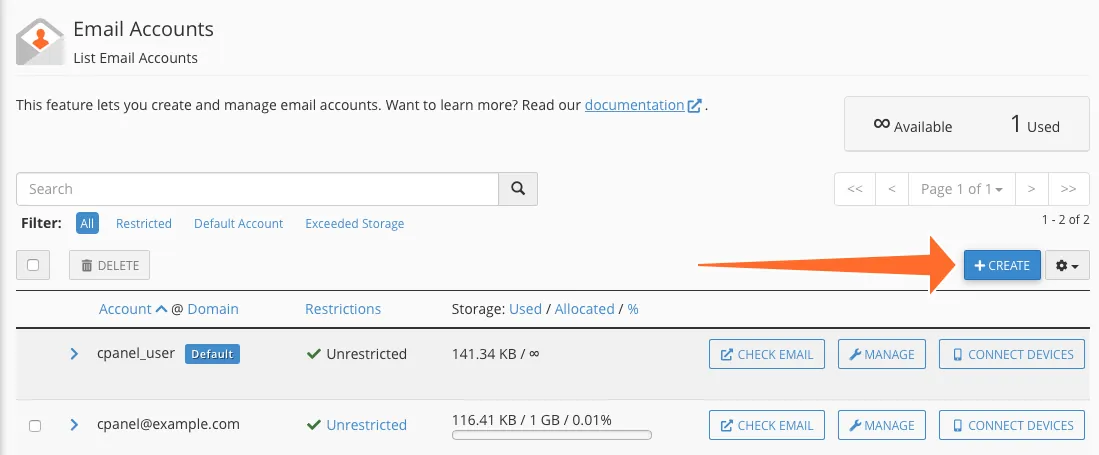
-
Now click ‘Connect Devices’ to find out the cPanel SMTP settings. Here you will find the username, SMTP Host (outgoing server), and SMTP port. This information you need to configure SMTP on app.seoaudit.software.
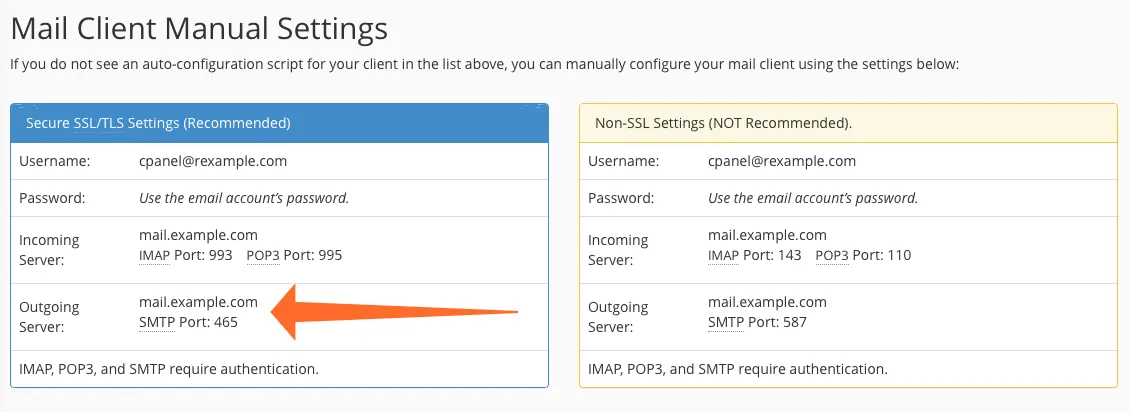
- We recommend you select SSL or TLS to secure the setting.
Now that you are all set up let’s start configuring your Business Email SMTP on app.seoaudit.software.
→ SMTP HOST: mail.yourbusinessname.com (you will find it at the cPanel connect devices interface)
→ SMTP PORT: 465 (with secure setting) (you will find it at the cPanel connect devices interface)
→ SECURITY: TLS or SSL that your email account is enabled with
→ SMTP USER NAME: Enter the user name created on cPanel. For eg. cpanel@yourbusinessname.com
→ SMTP PASSWORD: Use the email account password
→ SENDER NAME: Write whichever name you like.
→ SENDER EMAIL: Enter the email address from the username.
After filling up the information now click on ‘Save & Verify SMTP’ button to successfully complete your SMTP configuration. If you want you can send a test email from Manage Account > Settings > Email notification, to verify the SMTP configuration.
How to Find SMTP Data from Gmail
To set up either your Gmail or Business Email for a custom report sending or lead notification email, it’s necessary to configure an SMTP server. Luckily, the configuration of SMTP servers is generally very easy with SEO Audit Software.
All you have to do is simply sign up for a 14-day free trial or subscribe to any package to enter the SMTP setting at app.seoaudit.software. Free users can’t configure the SMTP.
First, go to Manage Account > Settings > SMTP Setting. Here you will find out all the necessary settings to configure SMTP for your Gmail, Yahoo, or Business Email.
How to set SMTP using Gmail?
To set the SMTP server for your Gmail account, follow the below steps. Before starting make sure your Gmail account has 2-step verification and App Password enabled. Because we need it for SMTP configuration.
- SMTP HOST: smtp.gmail.com
- SMTP PORT: If you’re using SSL, then it would be 465. And if you’re using TLS, then enter 587
- SECURITY: SMTP security is required for securing your email-sending connection. You can send email to anyone inside or outside your business if you connect using SSL or TLS. Choose TLS or SSL, that you’re currently in.
- SMTP USER NAME: Enter your Gmail Address.
- SMTP PASSWORD: Here you’ve to enter your App password which is configured in the Google account. To find out your App Password follow the below steps:
-
Go to Google Account > Security
-
Select App Passwords below the ‘Signing in to Google’ section. If you don’t find yours that is because your account does not have 2-Step Verification enabled. So first set up 2-Step Verification.
-
After selecting App Passwords here you may need to enter your Google Account Password again. Then select the app and device. And then click on ‘Generate’. You will have your App password.
- From the ‘Select App’ dropdown menu, choose the app you’re using or you can add a custom app name.
-
And for the select device, select the one you’re using or just enter a custom device name.
Note: In the case of the Custom name for App and Device, just one app or device selection is needed. The selection of App or Device has no influence on the app password. They are just used for your personal reference and for Google to apply the proper instruction for the next step. - And then click on the ‘Generate’ button. You will have your App password.
-
Go to Google Account > Security
Now copy the 16-digit app password and paste it onto the ‘SMTP PASSWORD’.
- SENDER NAME: Write whichever name you like. It will appear on the email notification.
- SENDER EMAIL: Enter your Gmail Address. Please keep in mind that if you enter a different Sender email from the Username, your emails can be marked as spam.
Now click on the ‘Save & Verify SMTP’ button. Your SMTP configuration is successfully completed. Please check your Gmail account for any verification mail to complete the SMTP configuration.
How to set SMTP from cPanel?
Now for the Business Email, you need to first set up SMTP in cPanel, Ajenti, Froxlor, CentOS, or Plesk – anything of your choice.
Here we’ve shared how you can set up SMTP in cPanel.
-
First, you have to create an email account on the cPanel
-
Then select domain, username, and password and click create to generate a new account
-
Now click ‘Connect Devices’ to find out the cPanel SMTP settings. Here you will find the username, SMTP Host (outgoing server), and SMTP port. This information you need to configure SMTP on app.seoaudit.software.
- We recommend you select SSL or TLS to secure the setting.
Now that you are all set up let’s start configuring your Business Email SMTP on app.seoaudit.software.
→ SMTP HOST: mail.yourbusinessname.com (you will find it at the cPanel connect devices interface)
→ SMTP PORT: 465 (with secure setting) (you will find it at the cPanel connect devices interface)
→ SECURITY: TLS or SSL that your email account is enabled with
→ SMTP USER NAME: Enter the user name created on cPanel. For eg. cpanel@yourbusinessname.com
→ SMTP PASSWORD: Use the email account password
→ SENDER NAME: Write whichever name you like.
→ SENDER EMAIL: Enter the email address from the username.
After filling up the information now click on ‘Save & Verify SMTP’ button to successfully complete your SMTP configuration. If you want you can send a test email from Manage Account > Settings > Email notification, to verify the SMTP configuration.
Why my SMTP is not working?
If you can not verify your SMTP, it happens when you don't configure it correctly in the SEO Audit Software SMTP settings.
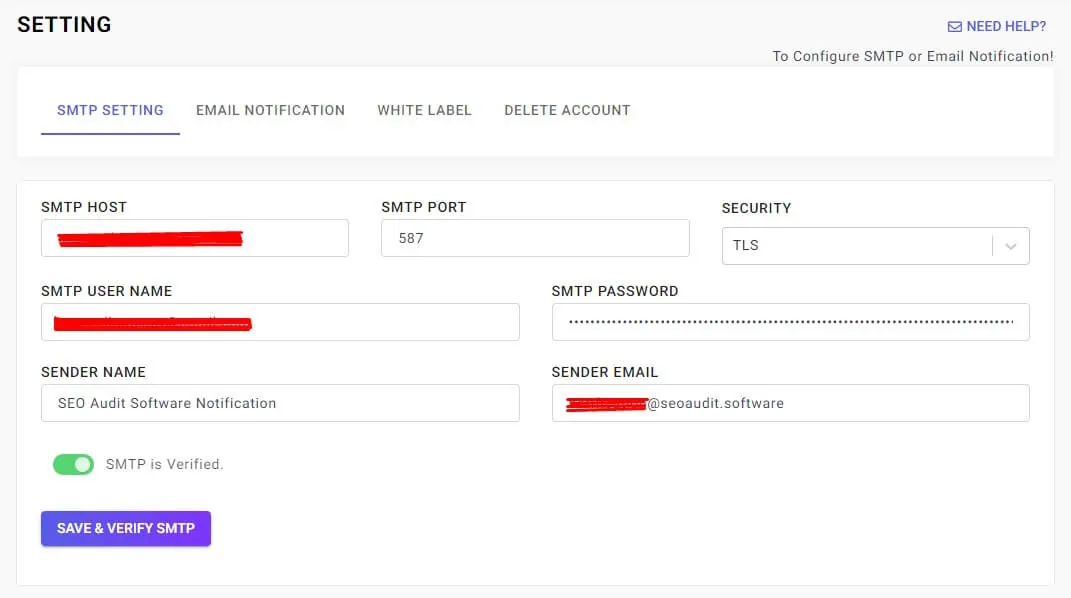
Most common mistake:
1. Check your SMTP Host URL with your service provider.
If you are not using a dedicated server.
Even if Host Name, Port & Security value matches your hosting server control panel. You can check the listed STMP testing tools below.
Or you need to contact your provider to get the main server SMTP hostname.
2. Make sure SMTP Port and TLS/SSL values are correct.
Still can't verify your SMTP:
Check out the following links and test your SMTP settings to figure out why your SMTP is not working.
Copy and paste the following URLs into your browse:
https://www.gmass.co/smtp-test
https://dnschecker.org/smtp-test-tool.php
https://www.smtper.net/
Need our help to configure your SMTP
1. Ask for support
2. We will ask one of our support engineering team's email addresses to add to your hosting server a Technical person's email address.
3. We will communicate with your service provider.
4. Find the right data and configure it for you.
We provide this support free of cost for paid subscribers one time only.
User Management 3
How can I share the Audit Report as a PDF with clients or 3rd party users?
You can share the Audit Report via your SMTP, where the user will get an email with the option to download the Audit report. Or you can share the PDF link.
If you want to share your own Audit Report PDF link with others, login into our app.seoaudit.software then click on My Audits. You will see the Audit Report here.
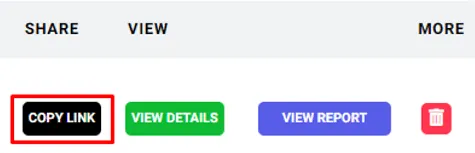
Click on the Copy Link button and share with anyone.
Now, If you want to share the Leads Audit Report, Go to the All Leads Page, Copy the link & share it.
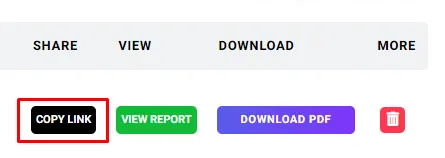
How do I add another user to my account?
When you signup with SEO Audit Software, you don’t need to fill out any registration form. You can sign up with a valid Gmail account or Google Authentication domain.
But what happens if you want to share your SEO Audit Software access with your teammate?
We keep it sample. Just log in to your account and follow the following steps:
STEP 1: Login to your SEO Audit Software account using your email.
STEP 2: Click My Profile from Manage Account. There you can find an empty password field.
Type the password for your teammate. After setting up the password, click the save button, and wait until you successfully save it.
STEP 3: Then share your email address and newly added password with your team. So your teammate doesn’t know your email password and they can access SEO Audit Software.
And you can access the same as before by authenticating your email.
What happens if I forget my password?
You are signing in to our app using Gmail. So technically you don’t need to save or create any password while you’re signing up for SEO Audit Software.
But after login, if you want to share your access with your co-worker, you can set up a new password. So you don’t have to directly share your Gmail password with your team members.
If you lost your password, just log in using your Gmail and set up a new password from the ‘My Profile’ section.
White Label 3
How can I change scan domain server location browser?
Technically we don't have a feature to change it, as hosted on the cloud. But our server provides data from the nearest location using our CDN service.
For example, if you are using from New Jersey it will return data from New York.
Using from Europe
And if you are using it from Europe, it may return data from Amsterdam, Frankfurt, London, Madrid, Milan, Paris, Stockholm, Warsaw based on your nearest location.
Using North America
And if you are using it from North America. It may return data from Ashburn, Atlanta, Chicago, Dallas, Denver, Los Angeles, Miami, New York, San Jose, Seattle, and Toronto based on your nearest location.
Using Oceania
And if you are using it from Oceania. It may return data from Melbourne or Sydney.
Using Asia
And if you are using it from Asia. It may return data from Hong Kong, Manila, Seoul, Singapore, and Tokyo. You can find the updated list here.
The best you can do is change the label from Manage Account > My Profile Section. And
TEST SERVER REGION: Type your preferred location
COLLECTING PAGE DATA USING: Type your browser name.
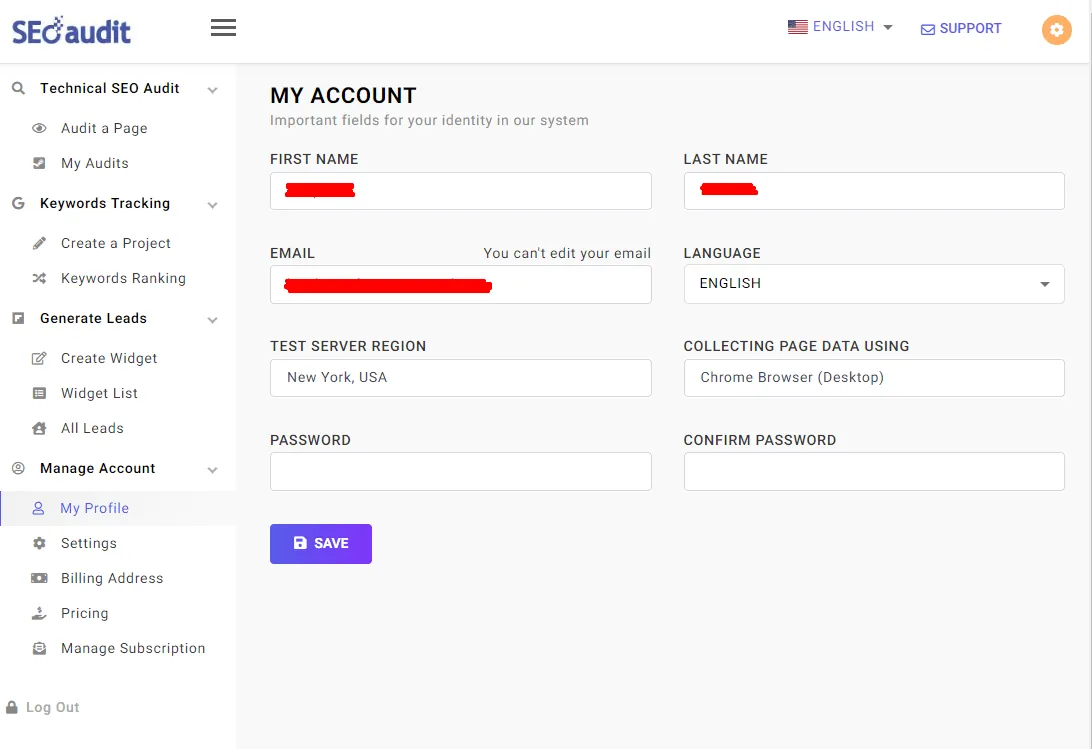
What we have in default is for our location.
How to configure white label notification email
Once you successfully verified your SMTP, you need to change the brand of your notification email with your company logo and information.
To do that:
You need basic HTML knowledge, Company Logo, Branded Color code, and an address.
Step 1: Configure your SMTP
Step 2: Edit your notification email template.
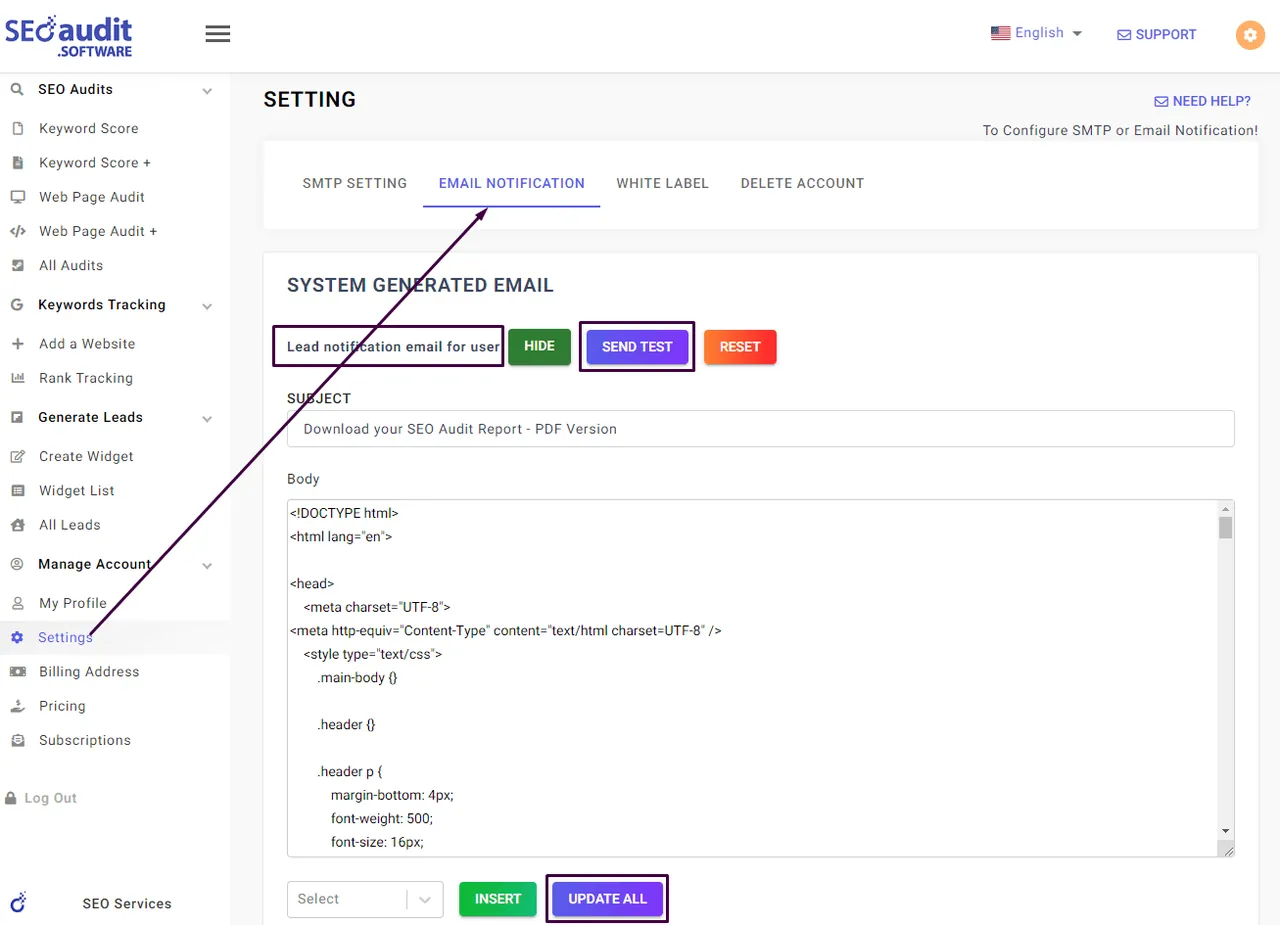
During creating the lead generation form, if you enable email notification features, the user will receive this email from your email address to the user input email address.
What you can configure here
- Change complete email design and layout or use existing design and layout.
- Use your company name and logo and other detailed information.
- Send a test email and check over and over until you are satisfied.
- Remember you are not using our software mail server, after configuring your SMTP, you are using your mail server. So if there is a delay to receive the test email, contact with user hosting/email service provider.
How to make white-label SEO Report
SEO Audit Software has four types of reports:
- Keyword Score
- Keyword Score +
- Web Page Audit
- Web Page Audit +
All reports have a white label option. You can change it from Manage Account > Settings > White Label Section.
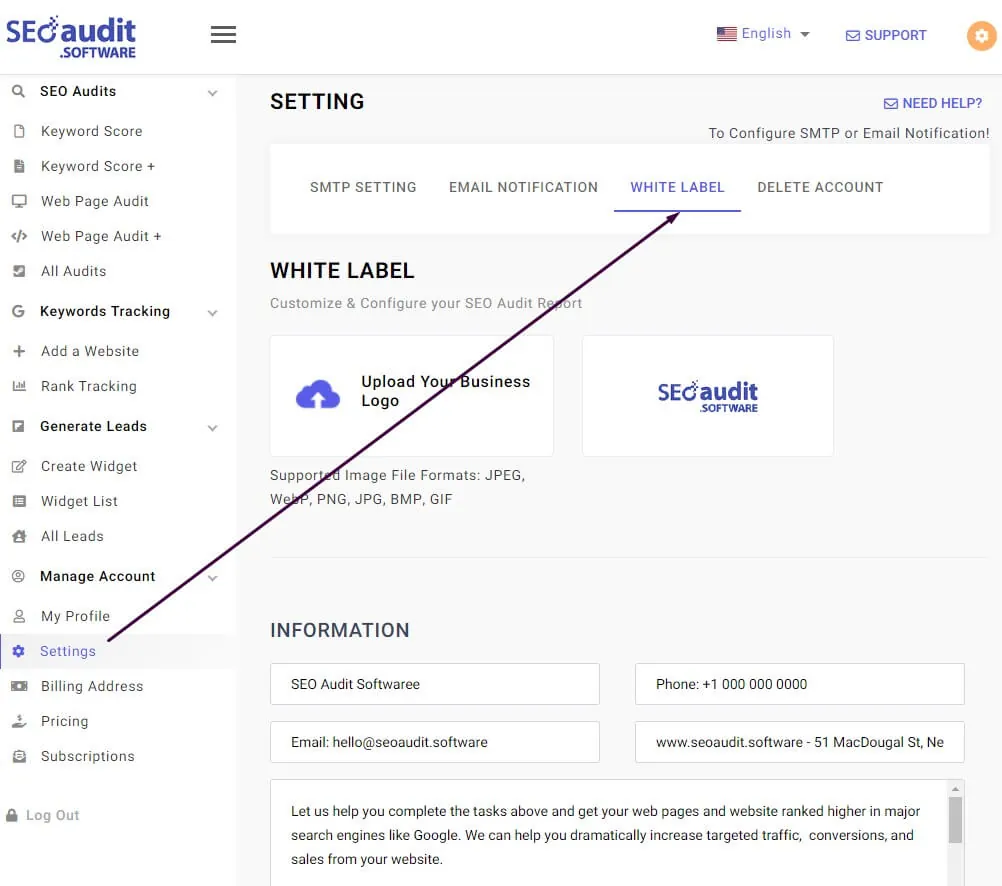
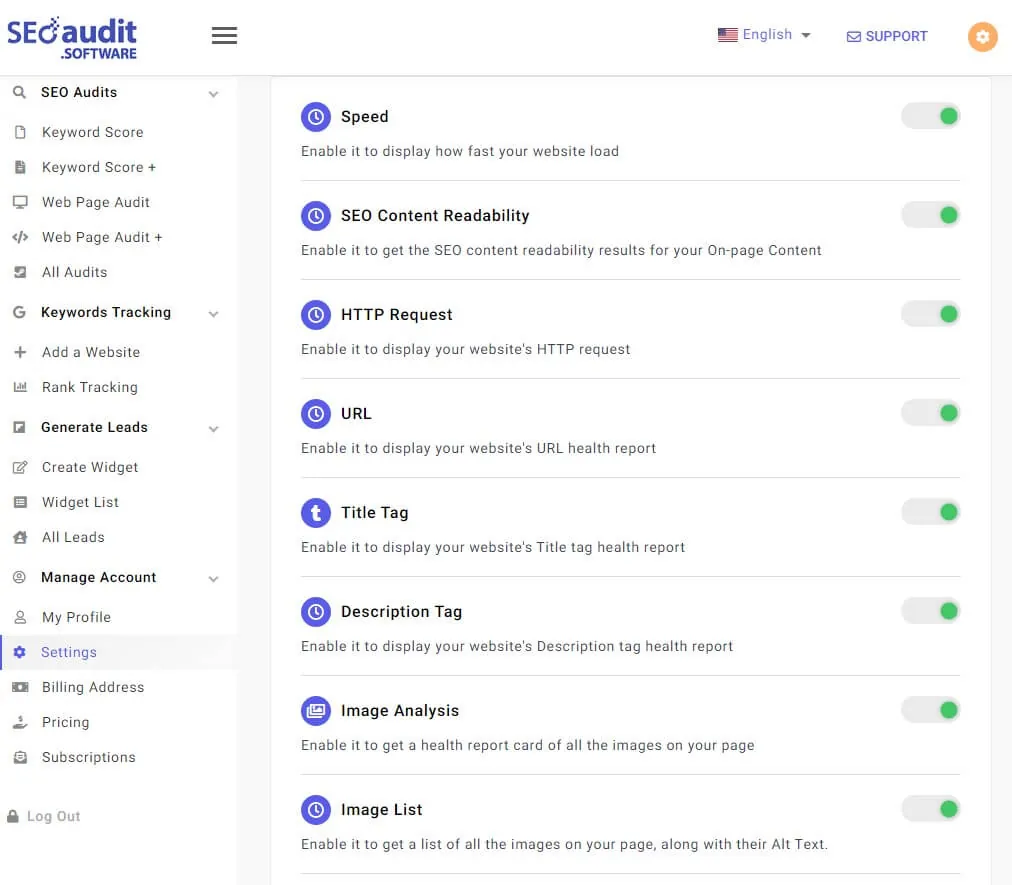
If you scroll down this page, you can find all the signals that appeared in the report. You can turn it on or off based on your business needs.
IMPORTANT: After changing the report branding with your company logo and detailed information, the next step should be to white-label your notification email.
App help center
The FAQs above cover the previous version of the app. For short step-by-step guides that use the same button names you see in the new app, go to the app help center.
- Getting started6 guides · Create your account, start the 14-day free trial and find your way around the app.
- SEO audits and white label6 guides · Run audits, read the score, send reports and put your own brand on them.
- Clients2 guides · Add each client website once. Its audits, keywords, leads and reports are grouped under it.
- Keyword tracking and map scans6 guides · Track Google positions by location and device, and scan local rankings on a map grid.
- Google data and client reports4 guides · Connect Search Console, Google Analytics 4 and Business Profile, then email white label reports on a schedule.
- Site crawl, backlinks, research and AI visibility5 guides · Crawl whole sites, watch key pages, monitor backlinks, research keywords and check AI answers.
- Audit widgets and leads4 guides · Put a free-audit form on a website, collect leads, export them or send them to your email tool.
- Team and account4 guides · Invite your team, switch between accounts, export your data or delete your account.
- Plans and billing5 guides · Plans, prices, add-ons, payment, invoices, cancelling and older plans.
- Fix guides25 guides · Step-by-step technical fixes for blocked crawls, crawl issues and failed audit checks, with copy-paste snippets.
- Troubleshooting3 guides · What to do when an audit fails, a PDF does not download or Google data needs a reconnect.
Try SEO Audit Software free
Start a 14-day free trial with no credit card, or run a free SEO audit first.